Warehouse Inventory — items, bins & zones in TMSDASH
Manage inventory items, stock bins, and zones across every warehouse. Track quantity on hand, reorder levels, and per-bin location so pickers and reorder alerts stay accurate. (ShipperTMS only.)
Overview
Manage inventory items, stock bins, and zones across every warehouse. Track quantity on hand, reorder levels, and per-bin location so pickers and reorder alerts stay accurate. (ShipperTMS only.)
How to get there
Key features
- Inventory items with SKU, quantity, and reorder level
- Stock bins organized by zone and warehouse
- Per-bin location tracking for efficient picking
- Reorder alerts surfaced on the Warehouse Dashboard
Step-by-step
- 1Open the sidebar → Warehouse → Inventory.
- 2Review items by warehouse and zone; check quantities against reorder levels.
- 3Open a stock bin to see its location and on-hand quantity.
- 4Adjust reorder levels to tune when the dashboard alerts you.
Page preview
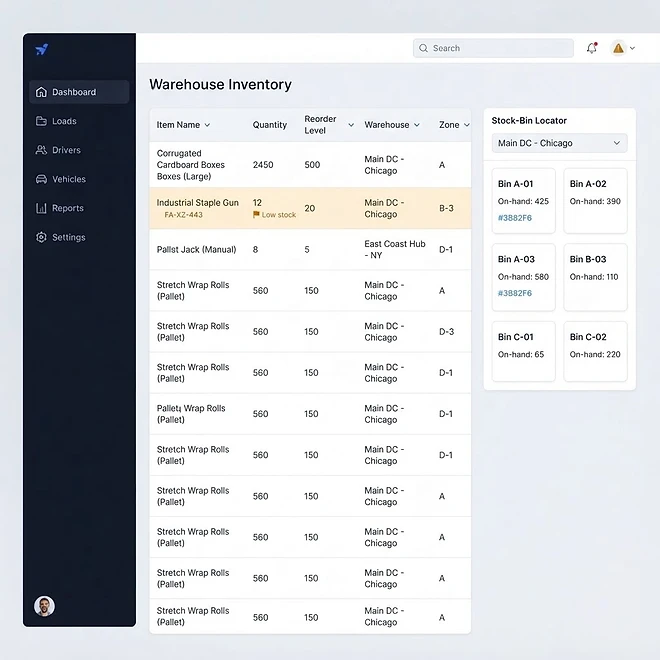
Representative screenshot of the Warehouse Inventory page.
Was this helpful?
Related modules
The operational command center for shippers. It surfaces shipment performance, open RFQ counts, dock-appointment throughput, and inventory reorder alerts — so a shipper sees outbound health, pending carrier awards, and warehouse readiness in one glance. (ShipperTMS only.)
A focused outbound overview for shippers. Track ready-to-ship orders, pending pickups, and in-transit shipments, and spot bottlenecks before they delay a customer. (ShipperTMS only.)
A live view of warehouse health for shippers. Inventory levels, dock-appointment throughput, pick/pack backlogs, and reorder alerts roll up across every warehouse and zone so you can balance labor and capacity. (ShipperTMS only.)
Create and track every outbound shipment — from tender through scheduled, in-transit, and delivered. Filter by status, link a provider, and watch awarded RFQ shipments bridge into a carrier's Load automatically with reverse status sync. (ShipperTMS only.)
Ready to put it into practice?
Start your free trial and explore this module with your own data.