Shipper Shipments — outbound shipment tracking in TMSDASH
Create and track every outbound shipment — from tender through scheduled, in-transit, and delivered. Filter by status, link a provider, and watch awarded RFQ shipments bridge into a carrier's Load automatically with reverse status sync. (ShipperTMS only.)
Overview
Create and track every outbound shipment — from tender through scheduled, in-transit, and delivered. Filter by status, link a provider, and watch awarded RFQ shipments bridge into a carrier's Load automatically with reverse status sync. (ShipperTMS only.)
How to get there
Key features
- Create shipments with origin/destination, commodity, weight, pallets, and equipment
- Status workflow: tender → scheduled → in_transit → delivered (or cancelled)
- Status filters and a searchable shipment list
- Provider linkage — awarded RFQ shipments show the winning carrier/broker
- Reverse status cascade — when the linked Load moves, the Shipment status mirrors automatically
- Actual pickup and delivery timestamps synced from the carrier Load
- Visibility timeline — every shipment has a chronological feed of milestone, GPS, stale-alert, and visibility-gap events
- Hourly visibility sync — an automated workflow backfills missing milestones and flags 4h+ tracking gaps on in-transit shipments
- Visibility-gap alerts — shipments with no tracking update for 4+ hours are flagged for follow-up, deduplicated per shipment
Step-by-step
- 1Open the sidebar → Outbound → Shipments.
- 2Click New Shipment and enter origin, destination, commodity, weight, and equipment.
- 3Save at tender status, then post it as an RFQ to collect carrier quotes.
- 4Award a quote to generate a Load in the provider's workspace — the Shipment links to it and mirrors its status as it moves.
- 5Filter by status to track scheduled, in-transit, and delivered shipments.
- 6Open any shipment and scroll to the Visibility timeline to see milestones, GPS pings, and gap alerts in order.
- 7Look for visibility-gap events — they flag shipments that stopped reporting for 4+ hours so you can follow up before a customer asks.
Page preview
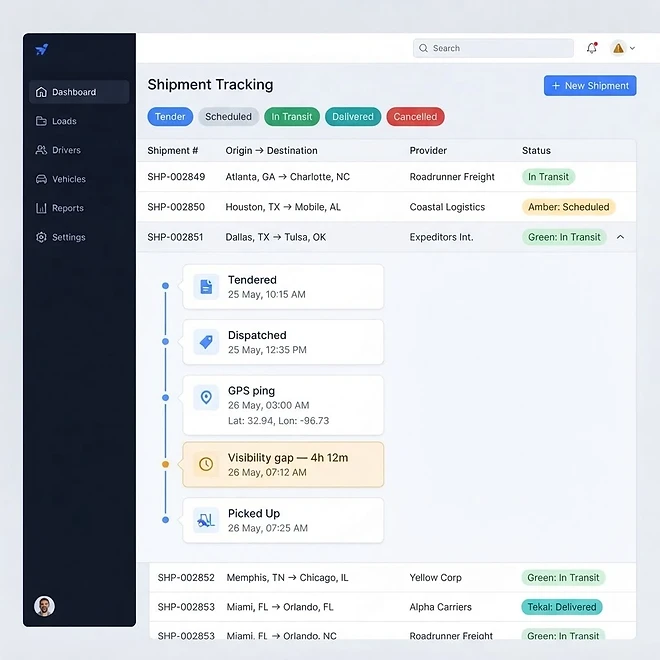
Representative screenshot of the Shipper Shipments page.
Was this helpful?
Related modules
The operational command center for shippers. It surfaces shipment performance, open RFQ counts, dock-appointment throughput, and inventory reorder alerts — so a shipper sees outbound health, pending carrier awards, and warehouse readiness in one glance. (ShipperTMS only.)
A focused outbound overview for shippers. Track ready-to-ship orders, pending pickups, and in-transit shipments, and spot bottlenecks before they delay a customer. (ShipperTMS only.)
A live view of warehouse health for shippers. Inventory levels, dock-appointment throughput, pick/pack backlogs, and reorder alerts roll up across every warehouse and zone so you can balance labor and capacity. (ShipperTMS only.)
Generate a bill of lading from any shipment with AI-assisted field extraction. Pulls commodity, weight, pallet and piece counts, and parties into a clean, printable BOL PDF ready for the carrier. (ShipperTMS only.)
Ready to put it into practice?
Start your free trial and explore this module with your own data.