Shipper Orders — order management & EDI 204 ingest in TMSDASH
Customer orders flow into ShipperTMS from three ingress paths — EDI 204 tenders, email/PDF inbox scanning, and manual entry — and move across an Open → Released → In Progress → Delivered → Closed Kanban. Releasing an order creates a tender shipment instantly, and an Order Auto-Release workflow turns incoming EDI/email tenders into shipments with no manual step. (ShipperTMS only.)
Overview
Customer orders flow into ShipperTMS from three ingress paths — EDI 204 tenders, email/PDF inbox scanning, and manual entry — and move across an Open → Released → In Progress → Delivered → Closed Kanban. Releasing an order creates a tender shipment instantly, and an Order Auto-Release workflow turns incoming EDI/email tenders into shipments with no manual step. (ShipperTMS only.)
How to get there
Key features
- Order Kanban: Open, Released, In Progress, Delivered, Closed
- Three ingress paths: EDI 204 ingest endpoint, email/PDF inbox sync, and manual entry
- EDI 204 endpoint — POST to /functions/ingestEdi204?carrier_id=<id> to create an order from a trading-partner tender
- Email/PDF inbox sync — scanTenderInbox reads a connected Gmail inbox, extracts tenders, and creates orders automatically
- Release an open order into a tender shipment in one click
- Order Auto-Release workflow — new EDI/email orders release into a shipment automatically (toggleable on the Automation page)
- Order roll-up — shipment status mirrors back into the order (In Progress, Delivered) on Refresh
- Repeat an order to clone a recurring customer shipment
- Priority (low/standard/high/urgent) and source badges (edi204, email, portal, manual)
Step-by-step
- 1Open the sidebar → Outbound → Orders.
- 2Click New Order to enter a customer order manually, or let EDI 204/email tenders arrive automatically.
- 3To wire EDI, point your trading partner at the ingest endpoint shown on the Orders page: /functions/ingestEdi204?carrier_id=<your id>.
- 4To wire email/PDF tenders, authorize the Gmail connector and click Sync email inbox — scanned tenders become orders.
- 5On an open order, click Release → to create a tender shipment and move the card to Released.
- 6Click Refresh on released or in-progress orders to roll up shipment status from the linked shipments.
- 7Use Repeat to clone a recurring order in one click.
Page preview
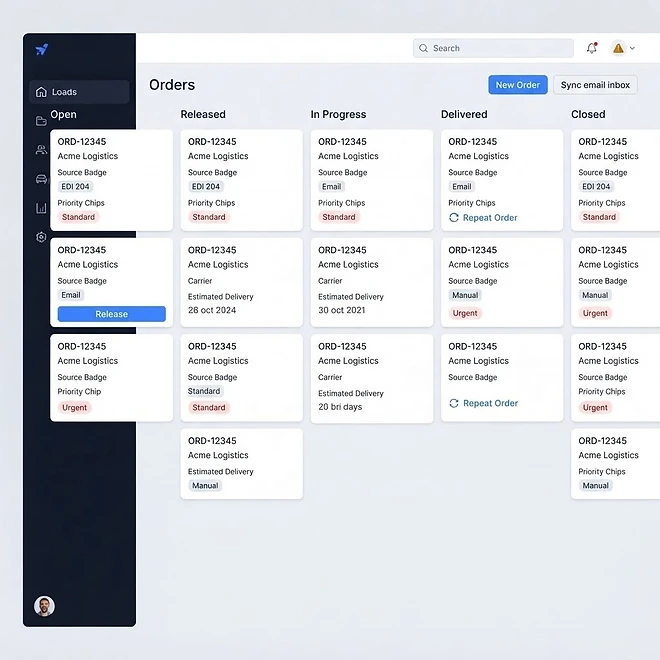
Representative screenshot of the Shipper Orders page.
Was this helpful?
Related modules
The operational command center for shippers. It surfaces shipment performance, open RFQ counts, dock-appointment throughput, and inventory reorder alerts — so a shipper sees outbound health, pending carrier awards, and warehouse readiness in one glance. (ShipperTMS only.)
A focused outbound overview for shippers. Track ready-to-ship orders, pending pickups, and in-transit shipments, and spot bottlenecks before they delay a customer. (ShipperTMS only.)
A live view of warehouse health for shippers. Inventory levels, dock-appointment throughput, pick/pack backlogs, and reorder alerts roll up across every warehouse and zone so you can balance labor and capacity. (ShipperTMS only.)
Create and track every outbound shipment — from tender through scheduled, in-transit, and delivered. Filter by status, link a provider, and watch awarded RFQ shipments bridge into a carrier's Load automatically with reverse status sync. (ShipperTMS only.)
Ready to put it into practice?
Start your free trial and explore this module with your own data.