Fuel & Expenses — receipt scanning & spend tracking in TMSDASH
Log fuel purchases and trip expenses, link them to loads and vehicles, and review spend summaries. Pulls in driver-submitted fuel entries alongside office-logged spend.
Overview
Log fuel purchases and trip expenses, link them to loads and vehicles, and review spend summaries. Pulls in driver-submitted fuel entries alongside office-logged spend.
How to get there
Key features
- Log fuel (gallons, price/gallon, odometer) and other expenses by category
- Link entries to a vehicle and/or load
- Source tracking: driver-submitted vs office-logged
- AI receipt scanning — upload a receipt photo and the vision model extracts gallons, price, total, and odometer
- Spending summaries: total, fuel, and other
Step-by-step
- 1Open the sidebar → Finance → Fuel & IFTA.
- 2Click New Entry — choose fuel or expense, enter the amount.
- 3For fuel, add gallons, price/gallon, and odometer; for expenses, pick a category.
- 4Link the entry to a vehicle and load, then save.
- 5Attach a receipt photo and click Scan to auto-fill gallons, price, and total with AI.
- 6Review the running totals and filter by date or vehicle.
Page preview
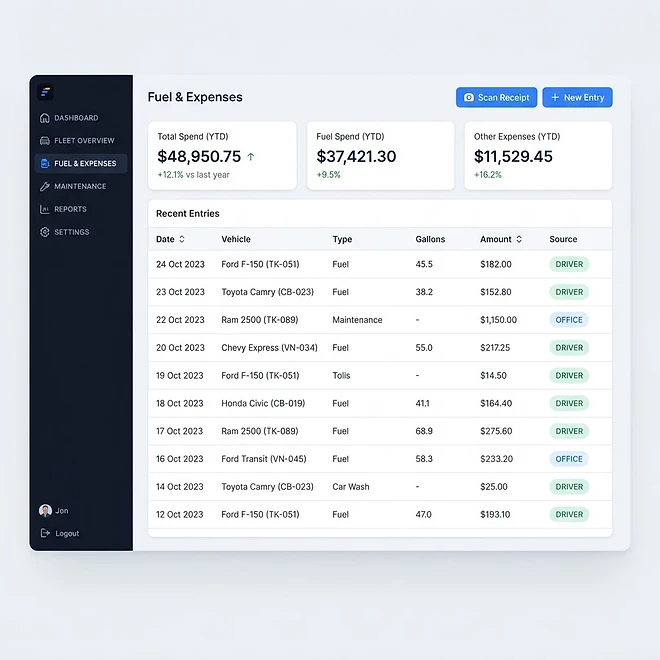
Representative screenshot of the Fuel & Expenses page.
Was this helpful?
Related modules
Your operational command center. It gives you a live snapshot of active loads, available drivers, vehicles on the road, and revenue collected — plus trend charts, a live driver-tracking panel, and a recent-loads feed.
The Load board is where you create, assign, and track every shipment. It supports three views — table, Kanban board, and calendar — plus search and filters for status and date, and one-click load templates for recurring lanes.
A real-time map of every driver with a GPS position. Markers show each driver’s location and status, with status cards beside the map for a quick read on who is on duty, off duty, or available.
A side-by-side calendar view of upcoming load pickups/deliveries and vehicle maintenance, so you can plan capacity and avoid scheduling conflicts at a glance.
Ready to put it into practice?
Start your free trial and explore this module with your own data.