Automation Controls — toggle every workflow on/off in TMSDASH
One page to control every background workflow in your workspace. The Automation page lists every operational automation grouped by domain — Shipper Automation, Dispatch & Loads, Compliance, Finance, Fleet & Fuel, Notifications, and Platform — each with an on/off Switch. Turn a workflow off and its scheduled function skips your workspace; turn it back on and it resumes. Platform-infra workflows (FMCSA census, sitemap, directory enrichment, trial expiry) are system-managed and always run. Every edition gets the page in the sidebar System group.
Overview
One page to control every background workflow in your workspace. The Automation page lists every operational automation grouped by domain — Shipper Automation, Dispatch & Loads, Compliance, Finance, Fleet & Fuel, Notifications, and Platform — each with an on/off Switch. Turn a workflow off and its scheduled function skips your workspace; turn it back on and it resumes. Platform-infra workflows (FMCSA census, sitemap, directory enrichment, trial expiry) are system-managed and always run. Every edition gets the page in the sidebar System group.
How to get there
Key features
- Per-carrier on/off toggles for every operational workflow, grouped by domain
- Shipper Automation group: Order auto-release, Shipment visibility sync, Freight bill reconcile
- Dispatch & Loads: driver load notifications, GPS staleness check, RFQ status cascade, invoice on delivery, carrier payable on delivery
- Compliance, Finance, Fleet & Fuel, and Notifications groups cover the rest of the operational workflows
- System-managed badges for platform-infra workflows (FMCSA census, sitemap, trial expiry) that always run
- Persistence model: a key absent or any value other than explicit false = enabled (the default), so nothing changes until you opt out
- Dual-use workflows (reconcile, QBO sync) only skip on the automated path — a manual admin click still runs
Step-by-step
- 1Open the sidebar → System → Automation.
- 2Review the enabled count at the top — "N of N operational automations enabled".
- 3Find the workflow you want to pause in its domain group and toggle its Switch off.
- 4The corresponding scheduled function skips your workspace on its next run; toggle it back on to resume.
- 5Platform-infra workflows show a "System-managed" badge with no toggle — they always run for the whole platform.
Page preview
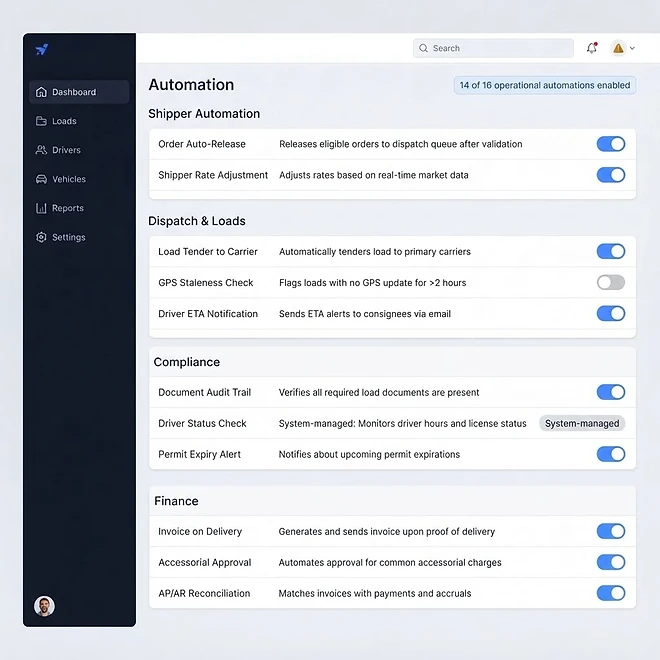
Representative screenshot of the Automation Controls page.
Was this helpful?
Related modules
An in-app AI assistant that answers operational questions and takes real actions across your TMSDASH data — loads, drivers, customers, invoices, maintenance, compliance, fuel, documents, and marketplace postings — right from a slide-out panel. It runs a bounded tool-calling loop: reading live data, then creating or updating records as you ask, with every write ownership-verified against your workspace and every tool result sanitized before it re-enters the model.
An external portal where your brokered carriers view and claim loads. Carriers sign in with an account, a share link, or an MC+PIN — no TMSDASH seat required.
Send documents out for legally-binding e-signatures. Place signature, initial, and date fields on any PDF, route to recipients in order, and track status through viewed → signed.
Tamper-evident record-keeping on the Base blockchain. Every new BOL, DVIR, invoice, signed document, and uploaded file gets a SHA-256 fingerprint anchored on-chain automatically, and a daily driver-GPS integrity commitment hashes each carrier's GPS activity once per morning. Only hashes go on-chain — document files, GPS coordinates, payments, and customer data always stay in TMSDASH private storage. The anchoring page tracks every anchor with verification, transaction tracking, and a testnet-to-mainnet network switch.
Ready to put it into practice?
Start your free trial and explore this module with your own data.