TMS.BOT AI Assistant — ask & act on TMS data
An in-app AI assistant that answers operational questions and takes real actions across your TMSDASH data — loads, drivers, customers, invoices, maintenance, compliance, fuel, documents, and marketplace postings — right from a slide-out panel. It runs a bounded tool-calling loop: reading live data, then creating or updating records as you ask, with every write ownership-verified against your workspace and every tool result sanitized before it re-enters the model.
Overview
An in-app AI assistant that answers operational questions and takes real actions across your TMSDASH data — loads, drivers, customers, invoices, maintenance, compliance, fuel, documents, and marketplace postings — right from a slide-out panel. It runs a bounded tool-calling loop: reading live data, then creating or updating records as you ask, with every write ownership-verified against your workspace and every tool result sanitized before it re-enters the model.
How to get there
Key features
- Ask operational questions in plain English
- Reads and acts on loads, drivers, vehicles, customers, invoices, maintenance, compliance, fuel, documents, and board postings
- Full tool-calling loop — list, create, update, and invoke backend actions, not just chat
- Ownership-verified writes: every id-bearing action is checked against your carrier workspace
- Injection-hardened: text inside load notes, customer names, or documents reads as data, never as instructions
- Bring Your Own AI key (OpenAI, Anthropic, Gemini, Hugging Face, or xAI) to run inference and tools on your own provider
- Persistent conversations with tool-call status indicators
- Available from the sidebar on every page
Step-by-step
- 1Click Ask TMS.BOT in the sidebar (or the bot icon on mobile).
- 2Type your question or request (e.g. "How many loads are in transit?" or "Create a load from Dallas to Denver").
- 3Watch tool-call indicators as TMS.BOT reads your data, then acts — every create/update is ownership-checked.
- 4For sensitive actions like emailing an invoice, TMS.BOT confirms intent before sending.
- 5Continue the conversation — history is preserved per session.
- 6To run TMS.BOT on your own AI key, connect OpenAI, Anthropic, Gemini, Hugging Face, or xAI in Settings → Integrations → BYO-AI.
Page preview
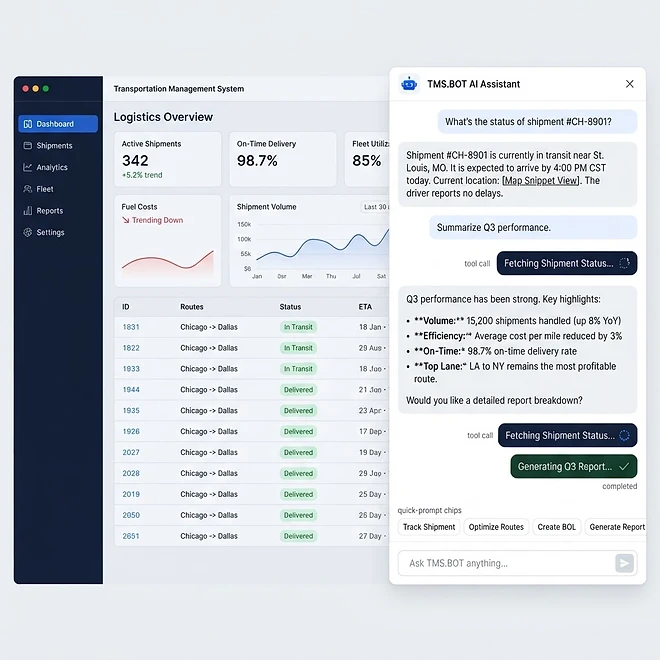
Representative screenshot of the TMS.BOT AI Assistant page.
Was this helpful?
Related modules
An external portal where your brokered carriers view and claim loads. Carriers sign in with an account, a share link, or an MC+PIN — no TMSDASH seat required.
Send documents out for legally-binding e-signatures. Place signature, initial, and date fields on any PDF, route to recipients in order, and track status through viewed → signed.
Tamper-evident record-keeping on the Base blockchain. Every new BOL, DVIR, invoice, signed document, and uploaded file gets a SHA-256 fingerprint anchored on-chain automatically, and a daily driver-GPS integrity commitment hashes each carrier's GPS activity once per morning. Only hashes go on-chain — document files, GPS coordinates, payments, and customer data always stay in TMSDASH private storage. The anchoring page tracks every anchor with verification, transaction tracking, and a testnet-to-mainnet network switch.
Third-party load tracking on brokered freight. When you connect your Macropoint account, a live tracking status feed from the broker marketplace is surfaced right on each load detail page alongside the in-app GPS map.
Ready to put it into practice?
Start your free trial and explore this module with your own data.